Are you preparing a video and unsure where to find music you are allowed to use? Or have you already uploaded one and seen a copyright notice? The original article introduces the YouTube Audio Library as a place to start, then shows how to find, download and credit a track.
The screenshots below are the original Spanish-language images. They illustrate the interface used in the guide and are not new screenshots of your account. “Free to download” does not mean “without copyright”: the permissions and attribution requirements of the chosen track still matter.
Open the Audio Library in YouTube Studio
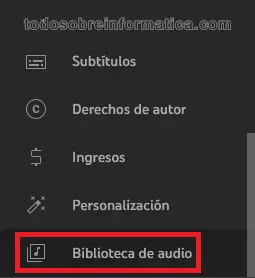
Sign in to YouTube Studio and look for Biblioteca de audio (Audio Library) in the left-hand menu. The first screenshot shows the menu position in the original guide.
Find music that fits your video
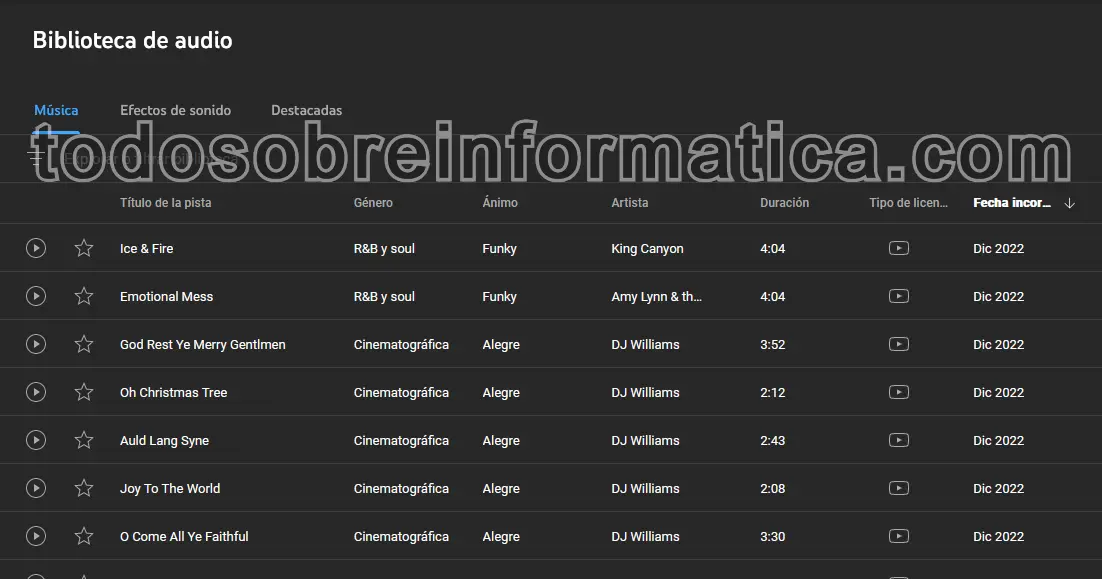
The original track list can be sorted by title, artist, duration and date added. You can also search for a name, genre or artist. Think about the length and tone of your own video while comparing tracks, rather than choosing music solely because it is available.
Download the selected track
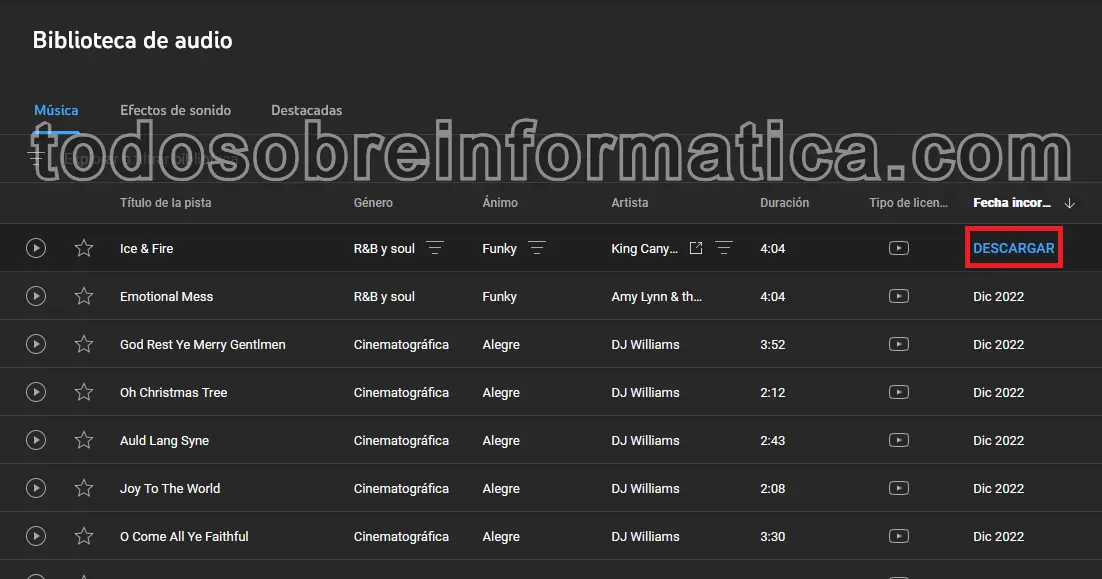
In the illustrated workflow, hover over the date added to reveal DESCARGAR (Download), then select it. Depending on your browser settings, the download starts or you are asked where to save it.
The downloaded file is an MP3. Import it into your video editor if that editor supports the format, and check the result before publishing. Keep a record of the selected track and the licence information that accompanied it.
Read the licence and give any required credit
The original article distinguishes two licence types:
- Standard YouTube Audio Library licence: tracks marked as not requiring attribution do not require that artist credit under this licence. Other applicable conditions still matter.
- Creative Commons Attribution: attribution is required. The original guide refers to Attribution 4.0; check the actual licence shown for your selected track instead of assuming that every track has the same licence.
Attribution means crediting the creator. For a track that requires it, open its licence information, copy the attribution text provided and put it in the video's description. Do not substitute a vague “music found online” statement for the required credit.
Music choice is not a monetisation guarantee
YouTube's official Audio Library instructions confirm the download and attribution process and explain that Partner Program participants can monetise videos using this library. This does not guarantee that a channel or an entire video meets every monetisation requirement.
The original article questions paid music libraries. Paying for a licence is not in itself a sign of a problem, and a track advertised as “no copyright” elsewhere is not automatically cleared for your use. Read the provider's terms and the specific permissions you need, especially if you also publish outside YouTube. This guide is general information, not legal advice.
Comments (1)
Comments are shown in their original language.
Edwin · 04-03-2023 08:10 · Desconocido
Es lo que estaba buscando
Reply from Todo sobre informática · 04-03-2023 08:16
Hola Edwin.
Excelente.
Saludos.