FileGrouper is a tool that automatically groups files into separate folders.
For example, imagine a folder containing 100 files that you want to divide into groups of three. FileGrouper creates 34 folders: it moves three files into each of the first 33 folders and the remaining file into folder 34.
Before starting: the tool moves files. Make a backup and try it with copies of unimportant files first. This English guide retains the original executable and does not change the program.
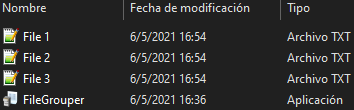
1. Copy the executable into the folder
Copy FileGrouper.exe into the folder containing the files you want to group.
2. Start FileGrouper
Double-click FileGrouper.exe, or select it and press Enter.
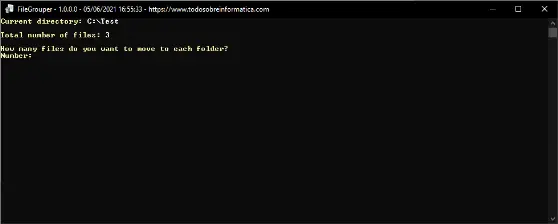
3. Choose how many files go in each folder
At the prompt How many files do you want to move to each folder?
, type the number of files per folder and press Enter.
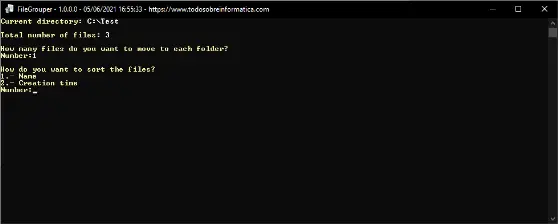
4. Choose the sorting order
At How do you want to sort the files?
, choose one of the two options:
- 1 — Name: sort by file name.
- 2 — Creation time: sort by creation date and time.
Type 1 or 2 and press Enter.
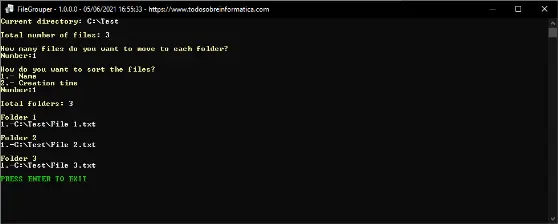
5. Check the folder count
The application displays the number of folders under Total folders:
.
6. Review the results
It displays each folder it creates and the files moved into that folder.
Comments (0)
Comments are shown in their original language.
No comments have been published yet. Be the first to join the conversation.