If someone with you needs internet access but has neither mobile data nor Wi-Fi, you may be able to share your phone's mobile connection. The original article illustrates the following nine steps.
These are the original Spanish-language screenshots. The settings shown may differ from those on your phone or Android version. The explanations below retain the visible Spanish labels so you can match each step to its image.
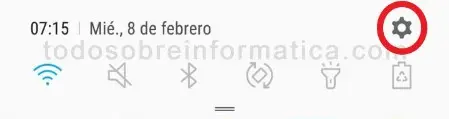
1. Open Settings
Tap the settings cog at the upper right of the screen shown.
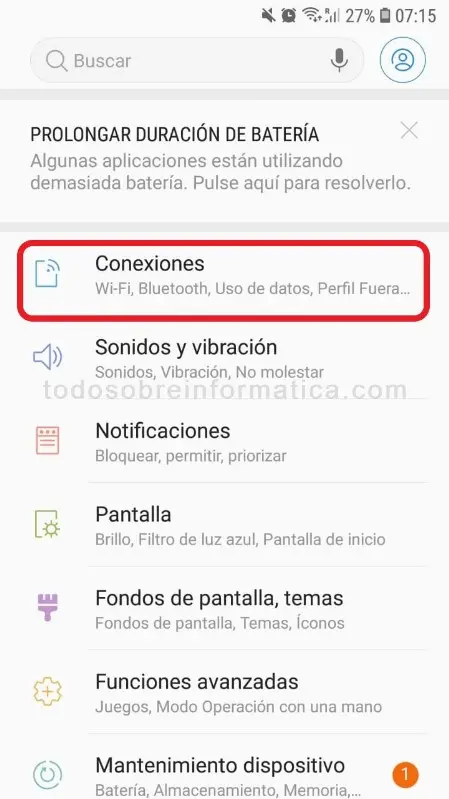
2. Open Connections
Tap Conexiones (Connections).
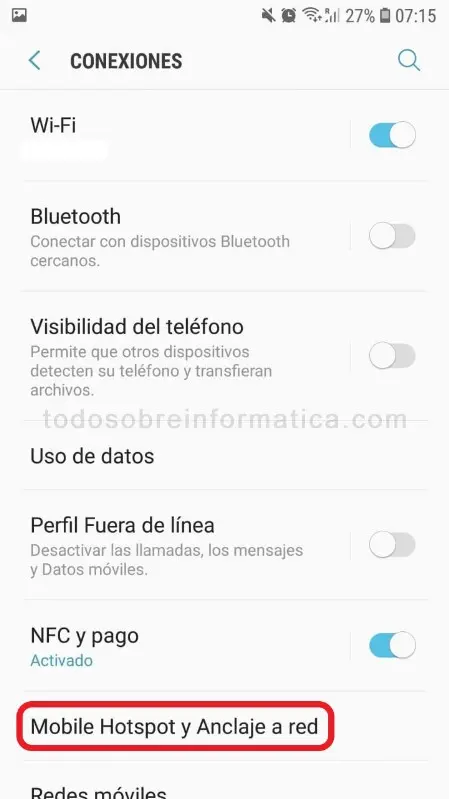
3. Open the hotspot settings
Tap Mobile Hotspot y Anclaje de red (Mobile Hotspot and Tethering).
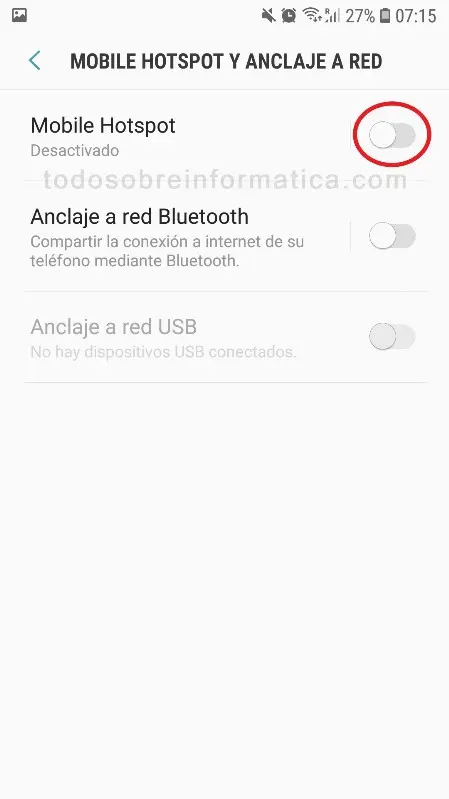
4. Enable Mobile Hotspot
Slide the switch next to Mobile Hotspot to the right.
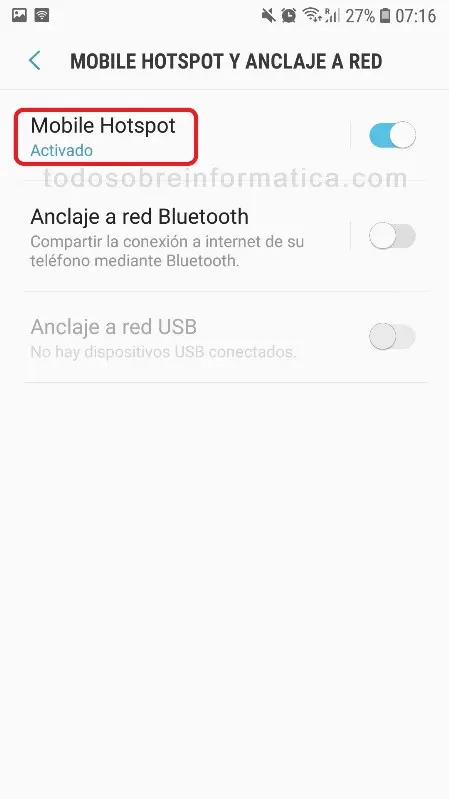
5. Open Mobile Hotspot
Tap the words Mobile Hotspot to open its options.
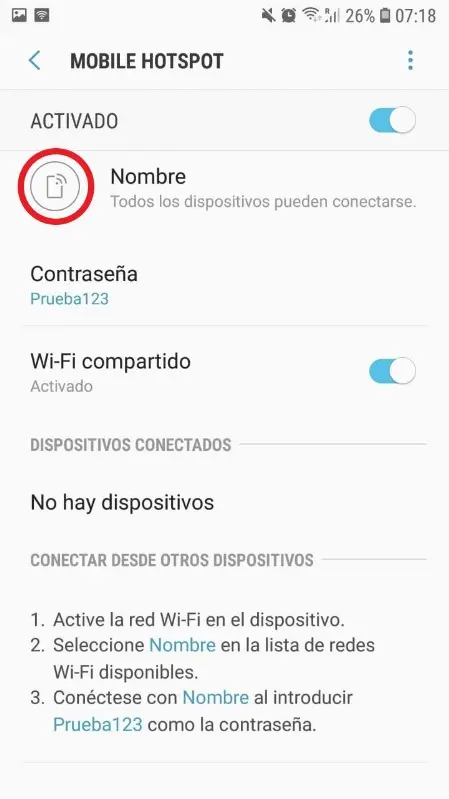
6. Select the network name control
Tap the circled control shown in the original image to name the network you will share.
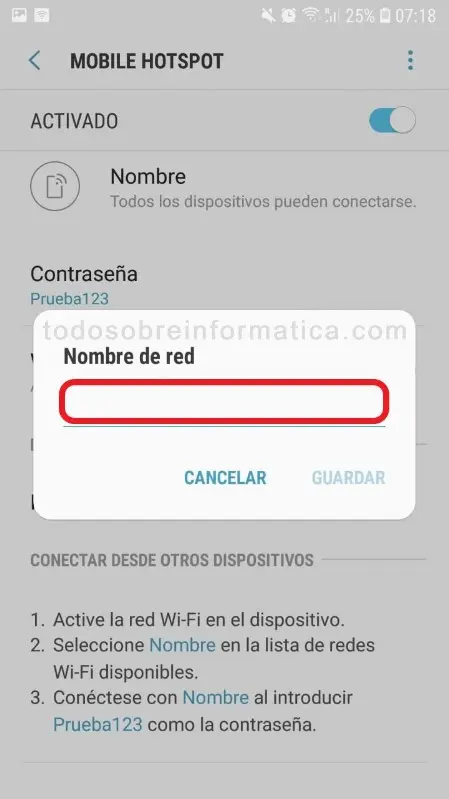
7. Enter the network name
Type the name you want to give the shared network.
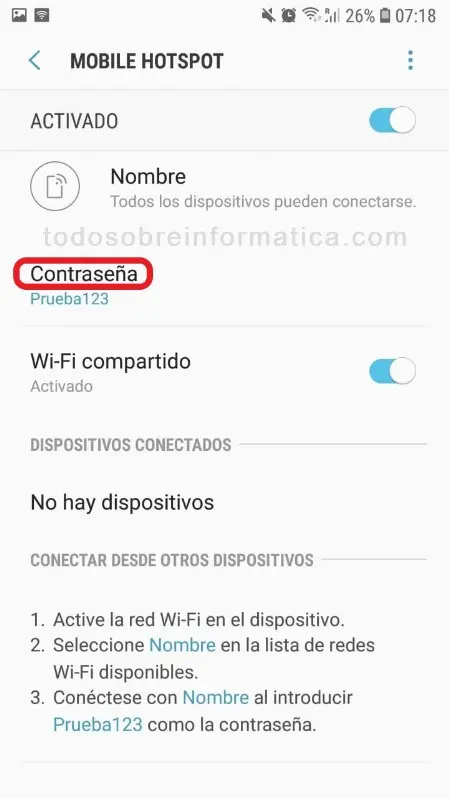
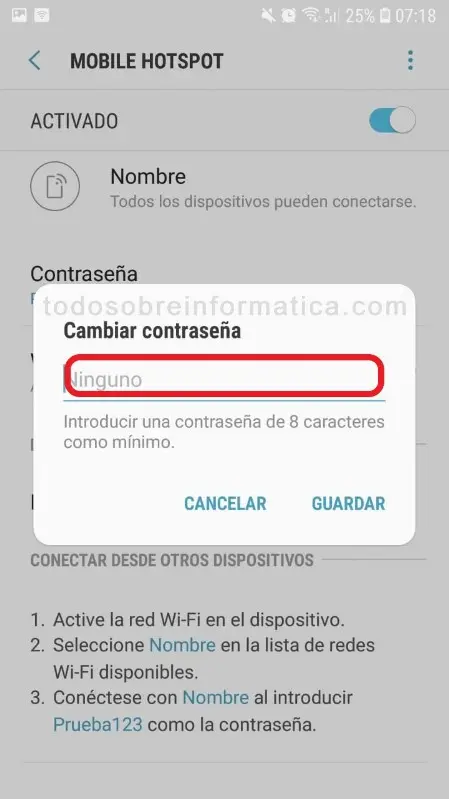
8. Select Password
Tap Contraseña (Password) to set the network password.
9. Enter a password
Enter the password that other people will need to join your shared network.
Connect the other phone
Ask your friend to find the new Wi-Fi network on their phone and enter the password you assigned when prompted.
Remember that sharing the connection consumes your mobile data allowance and could use some or all of it.
Comments (0)
Comments are shown in their original language.
No comments have been published yet. Be the first to join the conversation.