The original Windows guide describes four ways to stop, restart or start a service: the Services console, Task Manager, SC and NET. The screenshots are in Spanish and show the interface used for that article; available controls can differ by Windows version and service permissions.
Before changing a service: save your work, identify its purpose and dependencies, and confirm that you have authorisation. Stopping a service can interrupt applications, networking or active users. Do not use an important production service as a test.
1. Use the Services console
Enter this in Run or CMD:
services.mscThe console lists installed services and their state. The original screenshot includes Name, Description, Status, Startup Type and Log On As columns.
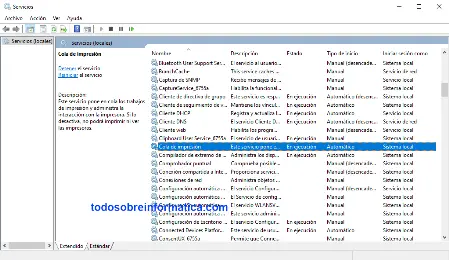
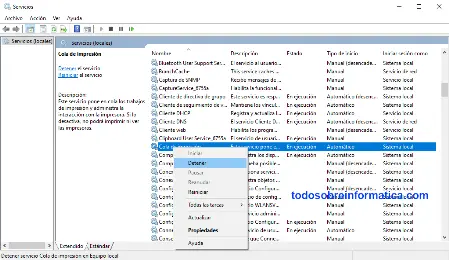
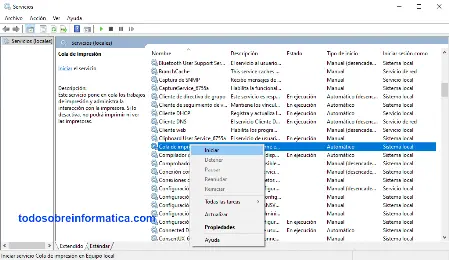
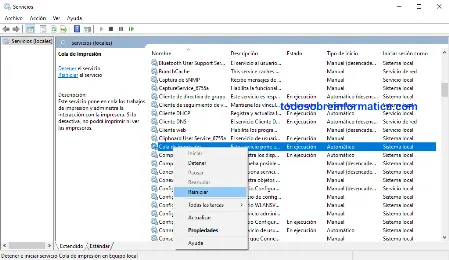
Right-click the intended service and choose the available action: Detener (Stop), Iniciar (Start) or Reiniciar (Restart).
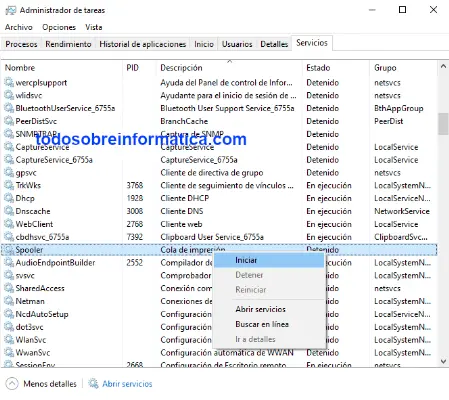
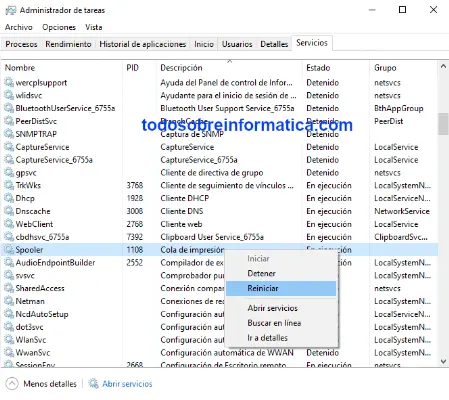
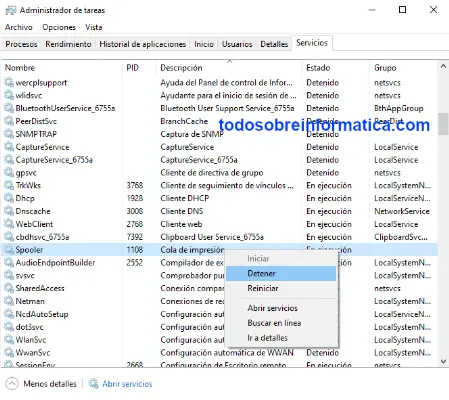
2. Use Task Manager
Enter the following in Run or CMD, then open the Services tab shown in the original interface:
taskmgrThe source describes Name, PID, Description, Status and Group columns. Right-click the intended service and select the appropriate available action.
3. Use SC from CMD
The original guide uses an administrator CMD window. Replace NombreDelServicio with the intended service name. These are separate actions, not a script to run indiscriminately.
Stop:
SC STOP NombreDelServicioStart:
SC START NombreDelServicio4. Use NET from CMD
The original NET examples also use an administrator CMD window. Confirm the service name before choosing one action.
Stop:
NET STOP NombreDelServicioStart:
NET START NombreDelServicioThis translation preserves the source's commands. It does not change startup types or execute any service operations on your computer.
Comments (0)
Comments are shown in their original language.
No comments have been published yet. Be the first to join the conversation.