If a key types a different character from the one printed on it, the keyboard layout selected in Windows may not match your physical keyboard.
The original guide uses a keyboard whose 2 key also carries the quotation mark and @ symbols. For that layout, the examples are:
- Press 2 on its own to type the number 2.
- Hold Shift and press 2 to type the quotation mark.
- Hold Alt Gr and press 2 to type @.
These combinations describe the example keyboard, not every national layout. If the combination for @ does not produce the expected character, check the configured layout.
The screenshots below show the original Windows interface in Spanish. Menu labels and paths may differ in another Windows version. The translations explain the controls shown rather than claiming that every current version has the same screens.
1. Search for language settings
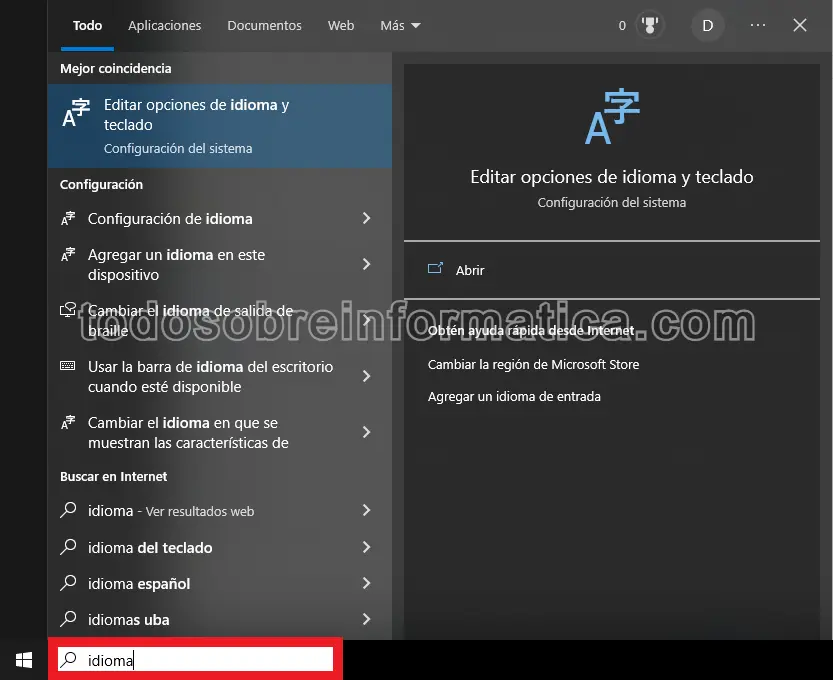
In the Windows search box, type idioma (language).
2. Open language and keyboard options
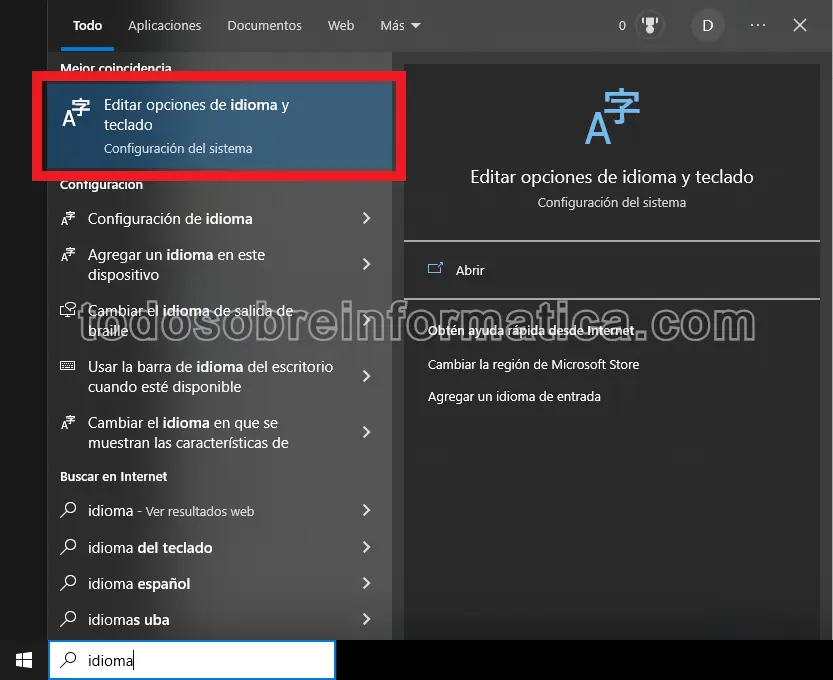
Select Editar opciones de idioma y teclado (Edit language and keyboard options).
3. Open options for your language
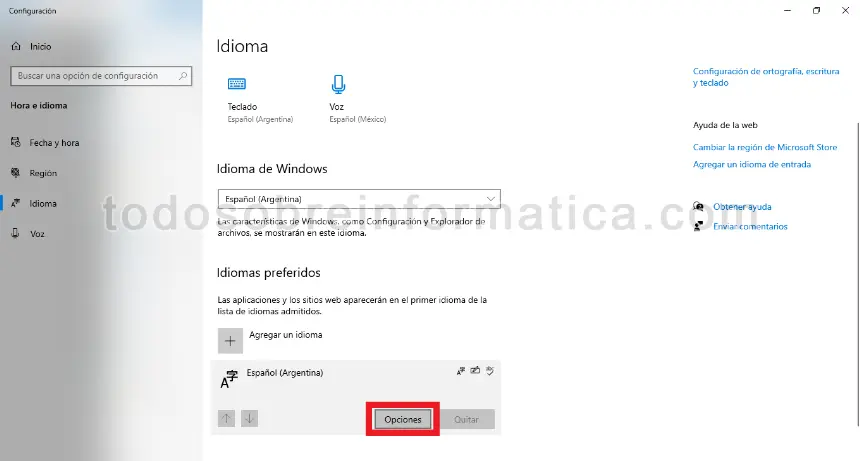
Under Idiomas preferidos (Preferred languages), select your language and choose Opciones (Options).
4. Add a keyboard
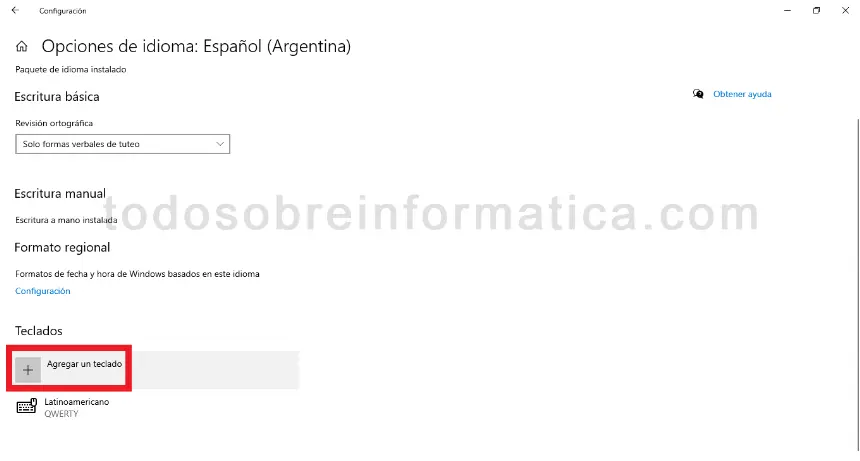
Under Teclados (Keyboards), select Agregar un teclado (Add a keyboard).
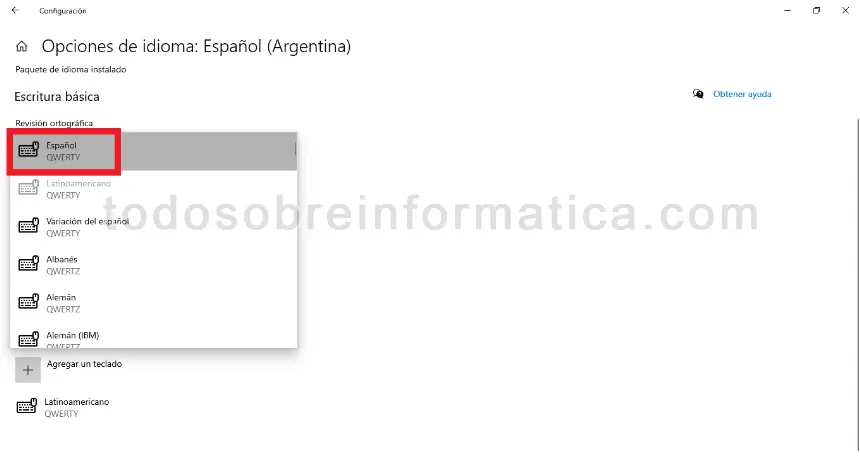
5. Select the matching layout
Select the language/layout that matches your physical keyboard.
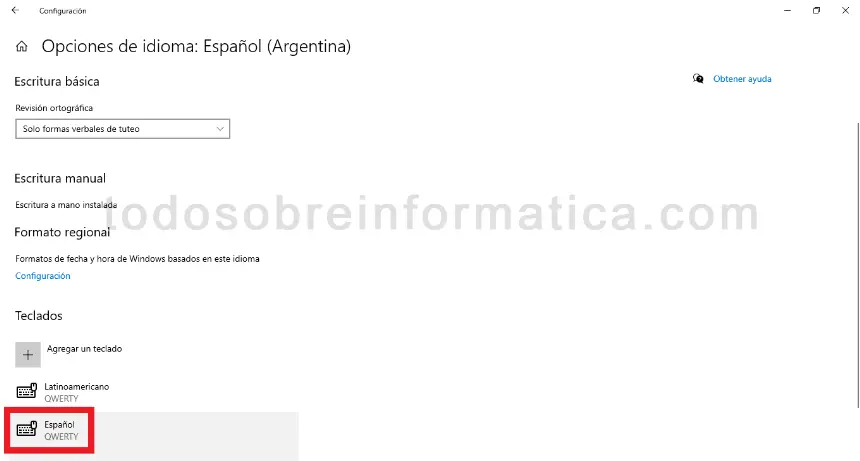
6. Check that it has been added
The newly selected layout now appears under Keyboards.
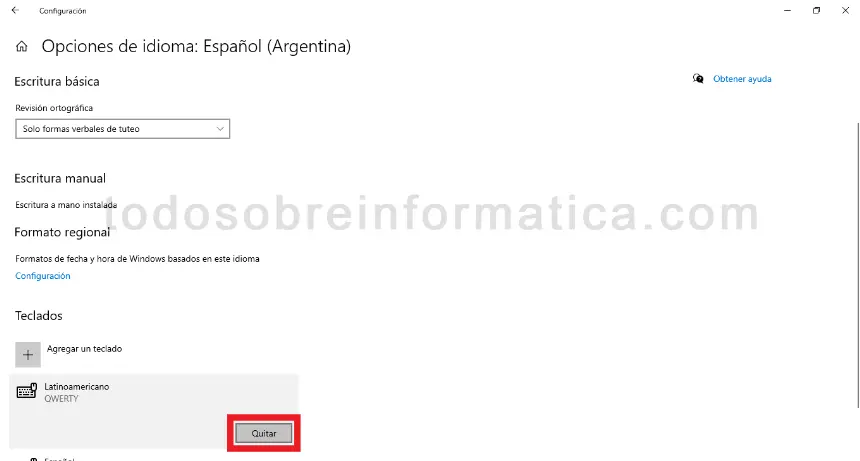
7. Remove the incorrect layout
After confirming which layout you need, select the incorrect one and choose Quitar (Remove).
Test the keys again to check that the selected layout matches the printed symbols. If you have difficulty configuring your keyboard, describe the problem in the comments.
Comments (0)
Comments are shown in their original language.
No comments have been published yet. Be the first to join the conversation.